Understanding RAM, SSD and Cloud Storage
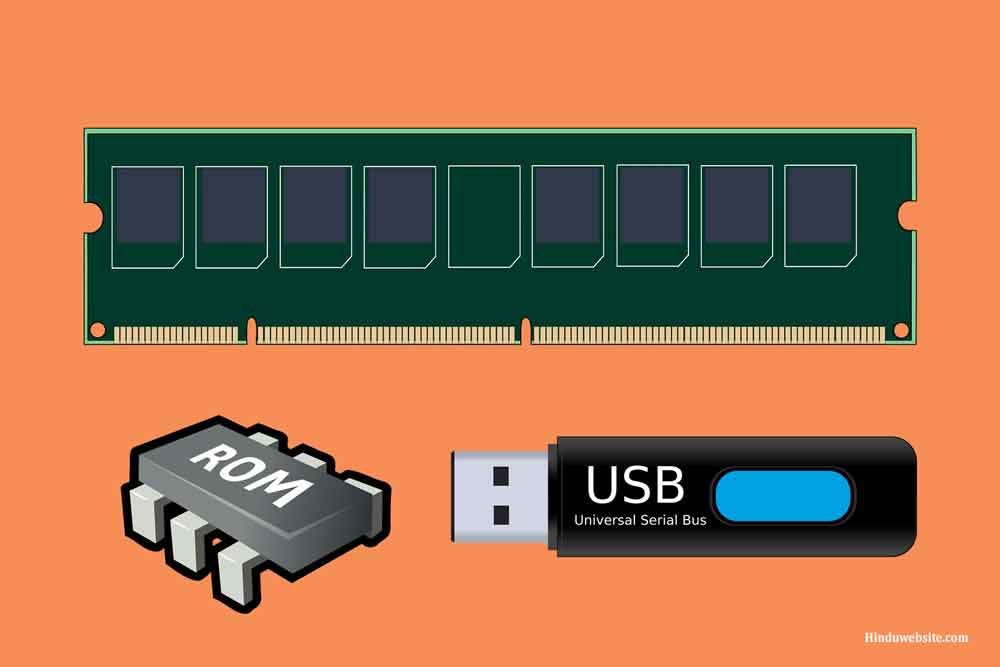
Summary: A plain-language guide to the three main types of storage and memory in modern computing — RAM, solid-state drives, and cloud storage — covering what each one does, how much you need, and how to think about them when choosing or upgrading a device.
When shopping for a computer, tablet, or smartphone, three storage-related specifications come up repeatedly: RAM, storage capacity (usually an SSD), and cloud storage. These are often mentioned alongside each other but serve very different purposes. Confusion about what each one does leads many people to buy more of one type than they need while underestimating another. Understanding the distinction makes it much easier to evaluate a device's specifications and decide whether they match what you actually do.
RAM: Your Computer's Working Memory
RAM stands for Random Access Memory. It is not storage in the conventional sense — it does not hold your files, photos, or documents permanently. Instead, RAM is the workspace your computer uses while it is actively doing things. When you open a browser, load a document, or stream a video, that content is loaded into RAM so your processor can work with it quickly. When you close the application or shut down the computer, everything in RAM is cleared.
The amount of RAM your computer has determines how many tasks it can manage simultaneously without slowing down. Too little RAM and the system starts to feel sluggish when multiple applications are open — a common frustration with budget devices. For general use in 2025, 16GB of RAM is the practical baseline for a comfortable experience. Power users working with video editing, large spreadsheets, or multiple virtual machines will benefit from 32GB or more. 8GB, once adequate for everyday tasks, now feels restrictive as modern web browsers and applications have grown more demanding.
Unlike storage, RAM is temporary and fast — it is designed for rapid read and write access rather than long-term retention. If a laptop or phone has its RAM soldered to the motherboard (as most modern ones do), there is no way to add more after purchase, which makes buying sufficient RAM from the outset more important.
SSD Storage: Your Computer's Filing Cabinet
Where RAM holds what the computer is actively working on, storage — today almost universally in the form of a solid-state drive (SSD) — is where everything is kept permanently. Your operating system, applications, documents, photos, music, and videos all live on the storage drive. When you shut down and restart, the files remain because storage, unlike RAM, retains data without power.
SSDs have largely replaced the older spinning hard disk drives (HDDs) in laptops and desktops because they are significantly faster, quieter, more durable (no moving parts to fail), and increasingly affordable. The difference in performance between a computer with an SSD and one with a traditional hard drive is dramatic — a computer with an SSD boots in seconds and opens applications almost instantly compared to one running an older hard drive.
How much storage you need depends on what you keep on your device. For a laptop or desktop used primarily for documents, web browsing, email, and streaming, 512GB is a comfortable starting point. Those who store large media libraries, raw photography files, or large project archives locally will want 1TB or more. It is worth noting that the operating system and installed applications consume a portion of the total storage — a 256GB drive will have noticeably less free space available in practice.
SSD vs HDD: Is There Still a Case for Hard Drives?
Traditional hard disk drives still have a role in one specific context: large-capacity bulk storage at low cost. External hard drives offering several terabytes of storage remain far cheaper per gigabyte than SSDs of equivalent capacity, making them a practical choice for backups, archiving large media collections, or supplementary storage that does not need to be fast. For the primary drive in any modern laptop or desktop, however, an SSD is the appropriate choice.
Cloud Storage: Storage That Lives Online
Cloud storage services — Google Drive, iCloud, OneDrive, Dropbox, and others — store your files on remote servers accessed over the internet rather than on a physical drive in your device. The key advantages are accessibility from any device with an internet connection, automatic synchronisation so files are always up to date across your phone, tablet, and computer, and built-in redundancy so your data is not lost if your device is stolen or damaged.
Cloud storage is an excellent complement to local storage, but it has limitations. It depends on a reliable internet connection — files may not be accessible offline unless you specifically download them for offline use. Privacy considerations matter: your data is stored on a third party's servers and is subject to their terms of service and security practices. Most cloud services offer a free tier of storage (typically 5–15GB) with paid plans for larger amounts.
Finding the Right Balance
For most users, the most practical approach combines all three: enough RAM to run current applications comfortably, an SSD with sufficient local storage for the files you use regularly, and a cloud storage service for backup, synchronisation, and access to files from multiple devices. When evaluating a new device, prioritise RAM and SSD capacity first — these have the greatest impact on day-to-day performance — and supplement with cloud storage based on your backup and accessibility needs.
For more guidance on choosing a computer with the right specifications for your needs, see our article on how to buy a laptop or desktop PC. For advice on keeping your data secure, our guide to protecting your computer and data online covers backup strategies and security best practices.
This article was written with AI assistance and reviewed for accuracy. Image for the topic of this page created with images from Pixabay.